You can also use it to browse and access documents within a folder very quickly. Usually, when you want to edit a series of frequently used documents, you'd have to either launch the app, and go to File|Open, or open the (My) Computer icon and go into your (My) Documents folder and pick the file you want. With 7stacks, just create a stack to that document's folder, and open that document in a couple of clicks.
Download 7Stacks
Features:
- In 7 and Vista, 7stacks uses Aero, making the stacks look like part of Windows itself.
- Browse subfolders within a stack, just like in OS X Snow Leopard.
- 3 different styles of stacks: Normal, Grid, and Menu
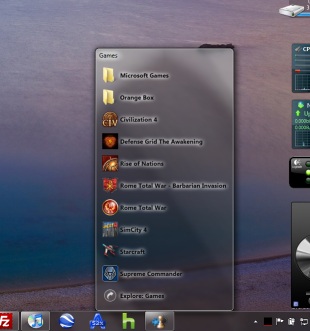
- Normal displays a stack of icons vertically, with a text description next to it.
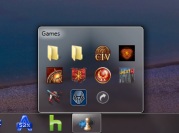
- Grid displays a "squarish" grid of icons only; useful when displaying a large number of items like document folders.
- Menu displays a cascading menu of items, with a very small icon and a name next to it. Hover over subfolders to browse inside those folders.
- In Windows 7, create a new stack by right-clicking on any stack and selecting "Create New Stack" from the JumpList entry.
- In Menu mode, 7stacks doesn't even need to be in a toolbar. You can use it right from your desktop, or any other folder.
- Pin up to 10 different stacks on the Windows 7 taskbar


No comments:
Post a Comment